Digital Certificates with Outlook
There are two types of Certificates, Exchange and S/MIME.
For Exchange certificates you need to be connected to an Exchange server
To use digital certificates you actually need at least two of them: one for your own email, and then you also need a recipient’s digital cert. You add your own cert to Outlook in step I and II, and then in step III, I show how to add the cert for a recipient.
I . Obtaining your own S/MIME Cert for Outlook
There are several places to get free S/MIME Cert.
- http://www.thawte.com/email/ “A thawte Personal E-mail certificate allows you to secure your e-mail communications by digitally signing and encrypting your e-mails… absolutely FREE! Click here to get your personal certificate now!”
- http://www.ascertia.com/onlineCA/issuer/default.aspx?linkID=40 I had some trouble installing on Windows 2000. Here is an article about CA: http://www.onlamp.com/pub/wlg/5142
The one that worked for me isThawte.com. (Must use IE [not Foxfire] to get the certificate)
Getting a Email Encryption Cert with Thawte
Getting certs from these free places is a multi step process in which you will need to receive and respond to several emails from Thawte using the email account for which you are getting a certificate.
Go to the http://www.thawte.com/email/ web site. After pressing the “Join” button you will have to enter several screens of information. You will need to enter the email account which you want to encrypt. The Certificate Service (Thawte) will send emails to that address. For this reason, you cannot get a free cert for address in PWLAB (e.g., you CANNOT get an account for an address that is internal to your office.
So you must use an email address that is accessible from the Internet, e.g., me@comcast.com , or lmtester01@hotpop.com
Outlook 2000 caveat: On some office networks, Outlook 2000 cannot reach POP servers when Outlook is in “Mixed” mode. It can reach them in “Internet Only” mode, but the add-ins do not support Internet Only mode.
You also must enter one of these pieces of info:
Driver's
license number
Passport number
Social security number
Other:
You can actually make up a driver’s license number.
Some of Thawte’s screens are confusing, but you can work your way through them. You will eventually get a message in the email you specified above:
Hello,
This is an automated message to let you know that we have justissued your personal certificate. You can retrieve it at: https://www.thawte.com/cgi/personal/cert/deliver.exe?serial=965327
In IE 6 you get a script error when you click on this, but that is OK. Here is a sample screen that this takes you to
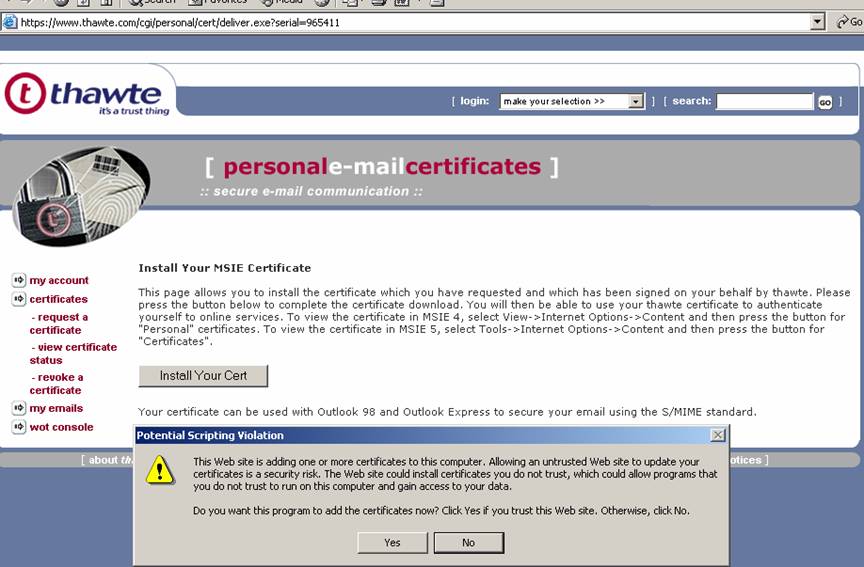
Click through a couple of screens and your cert gets installed. This installs an entire tree of your certs, root, personal, etc.
(I had one small problem with this on Office 2003 Server, but then I hit the Install Cert button again and it worked.)
Exporting the Cert to Get the PFX File
You then must go to ToolsàInternet Optionsà ContentàCertificates and export the .PFX version of the cert. This is your Personal Certficate. It is this .PFX version which goes into Outlook
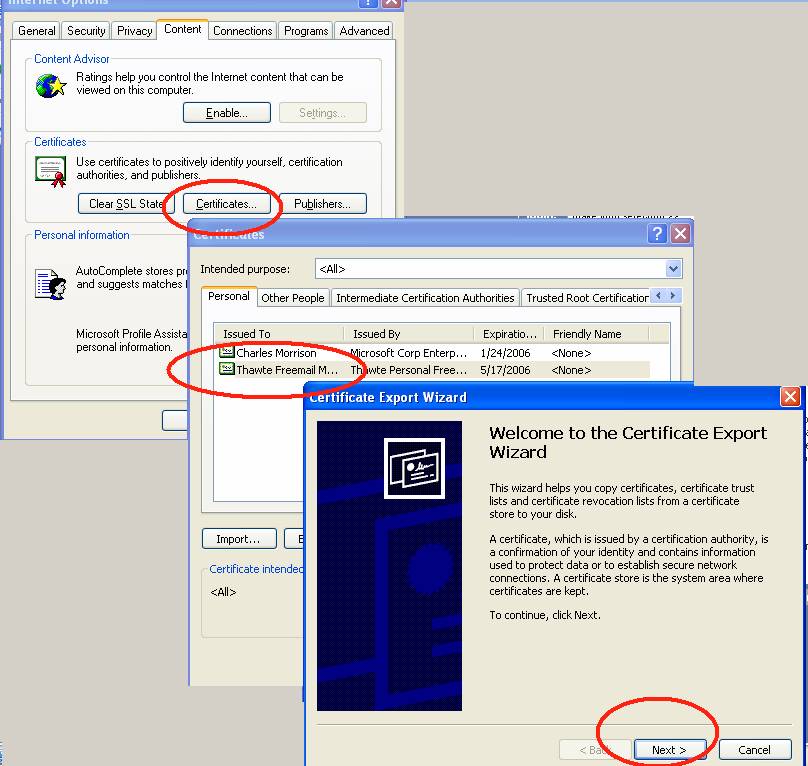
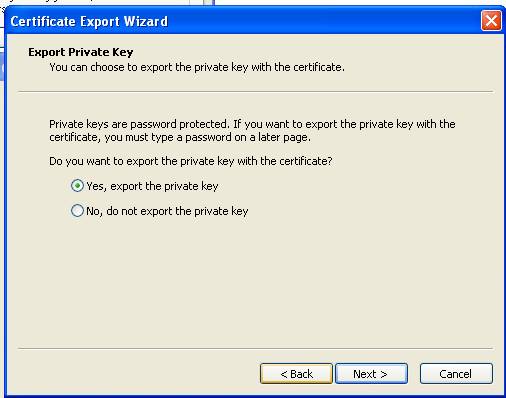
You must chose to export the Private Key at the next screen
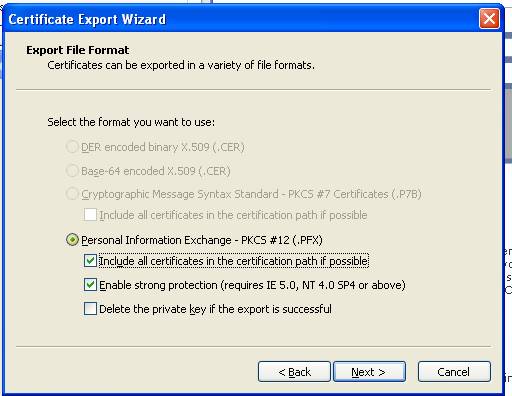
Export the “Personal Information.”
Put in a password at the next screen. Same Password you gave Thawte.
Chose a file location, then click finish, then OK.
Put the PFX file in a central location where you won’t loose it.
On the machine where you want to install the certificate right click on the PFX file and choose “Install PFX”
(I might be missing one step in here about installing a root certificate – I think you just export the above cert in a different way, not as PFX)
This will put it in the machine’s certificate store.
II. Install your Personal Cert in Outlook
In Outlook go to ToolsàOptionsà Security Tab à Import/Export button
Browse to the PFX file you just saved in Step One
Put in the Password you gave the file in step one
Type in a name for the Cert
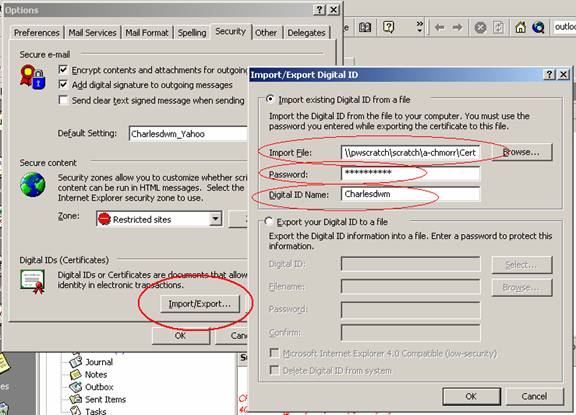
Click OK.
Then go to “Settings” button on Security Tab. Note only after going through the above import process will the Thawte Signing Certificate be available to choose.
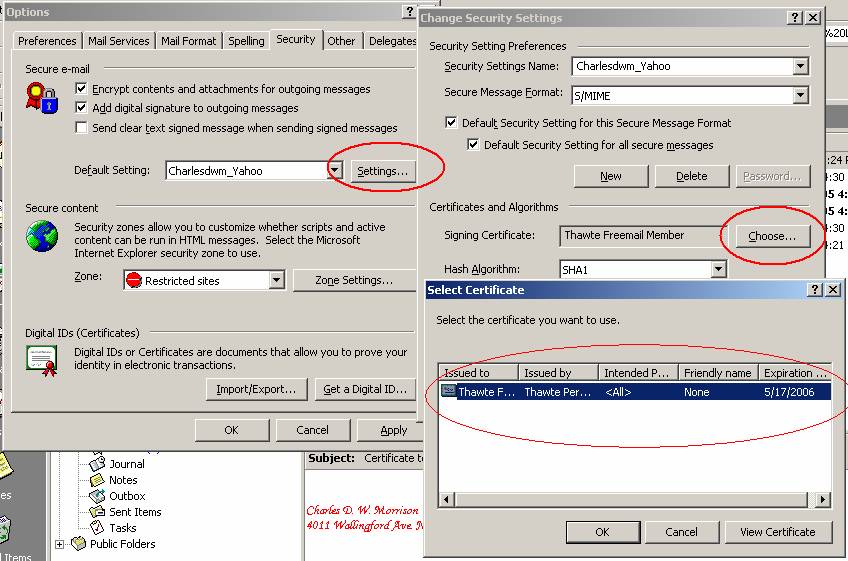
Press the Choose button
At this point the certificate you imported should be visible. You may have to restart Outlook to get it to recognize the Cert.
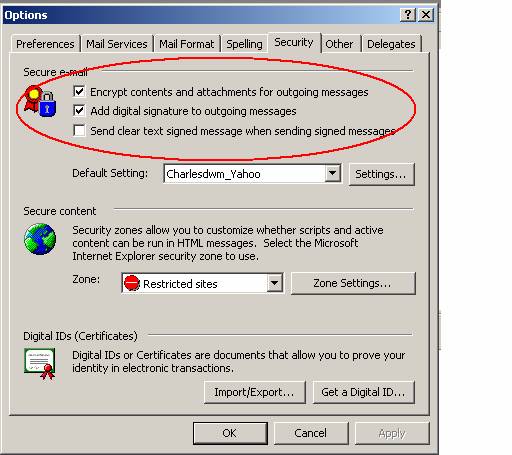
On the security tab, check the two boxes about encrypting outgoing messages:
III. Adding a Recipient’s Private Key to Your Contacts
http://support.microsoft.com/default.aspx?scid=kb;en-us;195843
To send an encrypted message to a recipient, you must have a copy of the recipient's digital ID stored with the address in your contact list or address book. If you have more than one entry for the recipient, you must use the one that has the digital ID.
First, you must obtain the Private Key for the recipient’s email address. This means that you must go through the process described above for a second email account.
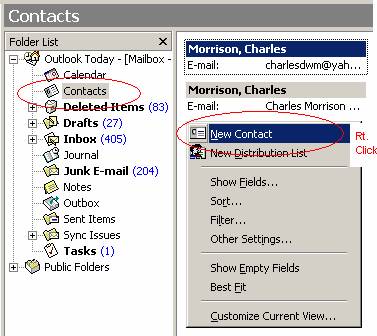
Then in your Outlook, you add that person as a contact:
Then you must import the other user’s certificate into your Outlook.
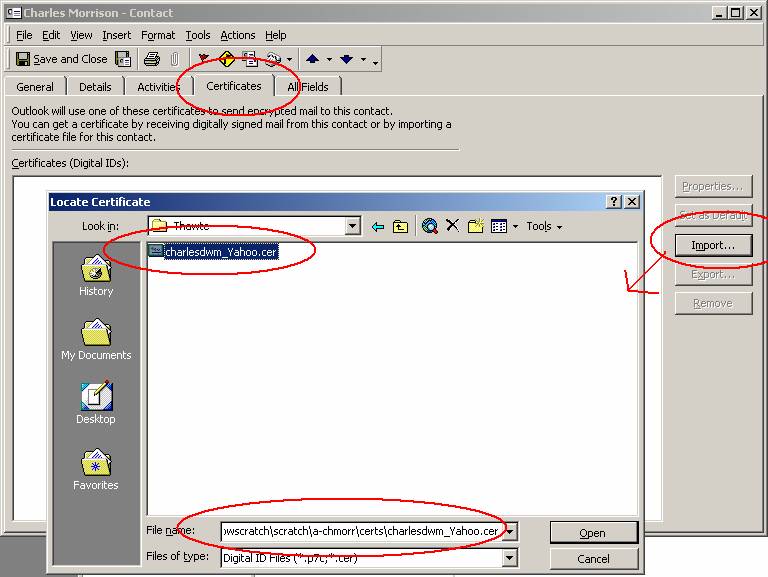
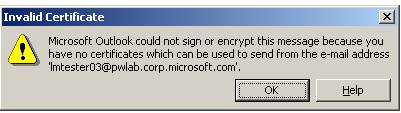
If you failed to get a certificate for this specific email address you will get this error when you try to send an email:
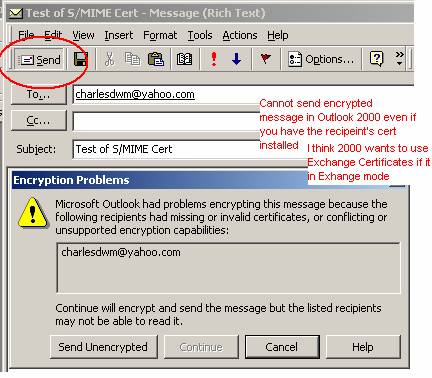
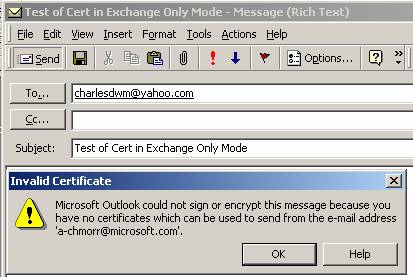
I am currently experiencing a problem with Outlook 2000 in Exchange only Mode, but the above process worked for Outlook XP. I think the problem with Outlook 2000 in Exchange only mode is that Outlook wants Exchange Certificates, not S/Mime certificates.
Screen Shot of Outlook 2000 SP1 Error in Mixed mode (POP and Exchange accounts)
Screen Shot of Outlook 2000 SP1 Error in Exchange Only mode (Exchange account only)
End of documentation